
Agent Trade Kit lets an assistant retrieve OKX market data or operate supported account functions through MCP; a separate CLI offers terminal access. A useful first task is to fetch the BTC-USDT spread and explain an order’s size without copying data by hand. This is exchange access, distinct from OnchainOS routing on blockchains.
Start without an API key
Verify the official repository and package names before installation. These commands pin the version checked for this guide; review release changes before upgrading.
npm install -g @okx_ai/okx-trade-mcp@1.2.8 @okx_ai/okx-trade-cli@1.2.8
okx market ticker BTC-USDT
okx-trade-mcp --modules market --read-only
The MCP process is a server for a client, so a terminal waiting for input can be normal. Configure your MCP-compatible assistant with the command okx-trade-mcp and arguments --modules market --read-only. Ask for a verifiable task: “Fetch BTC-USDT bid, ask and timestamp. Do not place an order.”
Prefer connecting through Claude? Follow the official screens
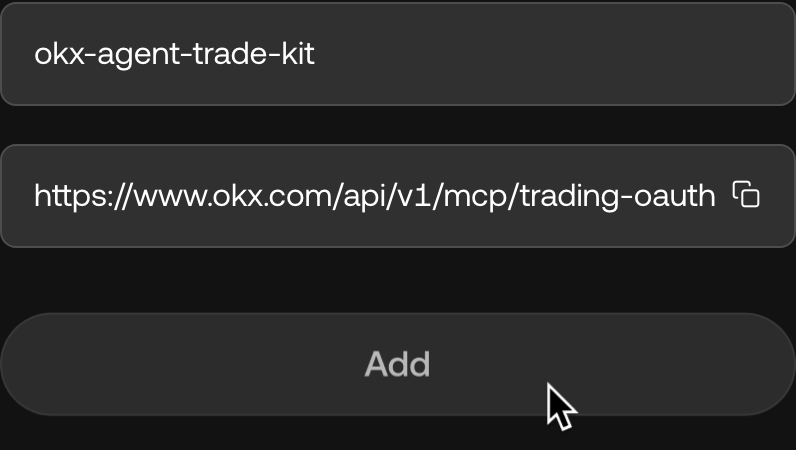
In Claude, open Customize → Connectors and add a custom MCP connector. Copy the server address from the Claude tab on the official OKX page, name it okx-agent-trade-kit, and select Add. This uses web account authorization; the CLI commands above configure a local MCP server. Local flags such as --read-only do not control the web connector.
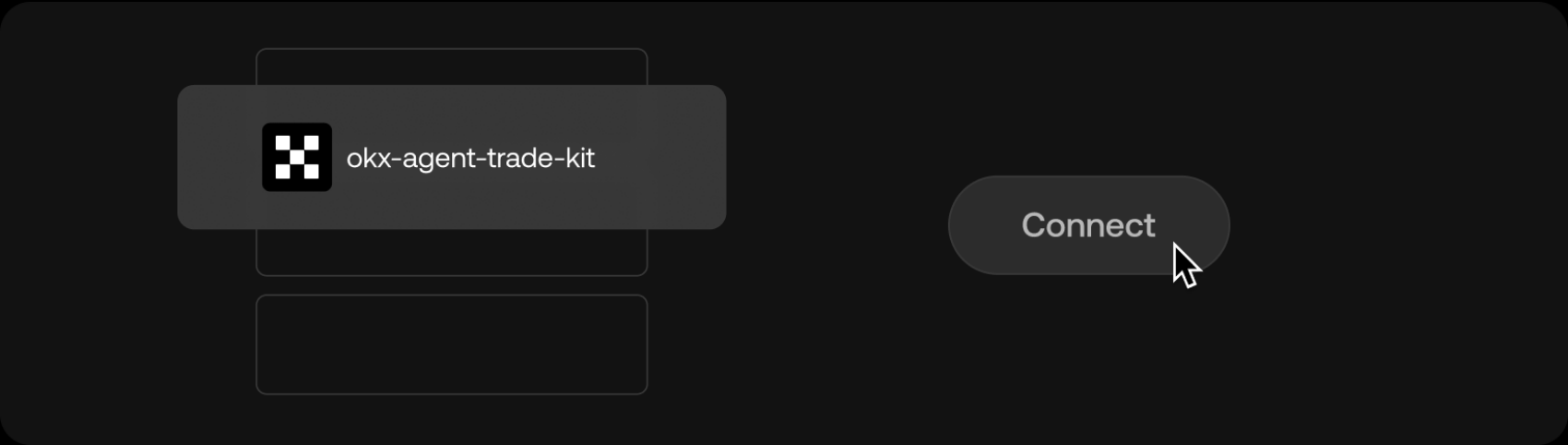
Find OKX in the connector list and choose Connect, then review the account and requested permissions before authorizing. Connecting a web account does not establish a demo session. For the local demo workflow, use the separate profile below.
Add a separate demo profile
Run okx config init and follow the official configuration guide. Create a demo profile with a demo API key and demo = true. Begin with market and account modules only:
okx-trade-mcp --profile demo --modules market,account --read-onlyAsk the assistant to read the demo balance and identify its active profile. Keep secrets in local configuration, not in a prompt. Local signing does not mean the assistant’s provider cannot receive returned account data. Expose only what the task needs.
Make an order plan explicit before enabling writes
After confirming the demo environment, add the appropriate spot or swap module and remove read-only mode only when you intend to test those operations. Specify instrument, side, quantity unit, limit price, order type, client order ID and cleanup. Review each proposed demo action rather than issuing an open-ended profit goal.
A successful demo order establishes an integration path, not a profitable strategy or live execution quality. The API key guide explains credential separation and the error guide helps distinguish authentication problems from invalid order parameters.
CLI commands and MCP names are different interfaces
CLI commands use space-separated subcommands; MCP exposes named tools. Do not invent a hyphenated CLI command by transforming an MCP name. For a failure report, retain the tool, error code and environment while removing keys, signatures and passphrases.